


Playtime Game App Overheating or Draining Battery? Mobile Performance and Settings Guide
Summary
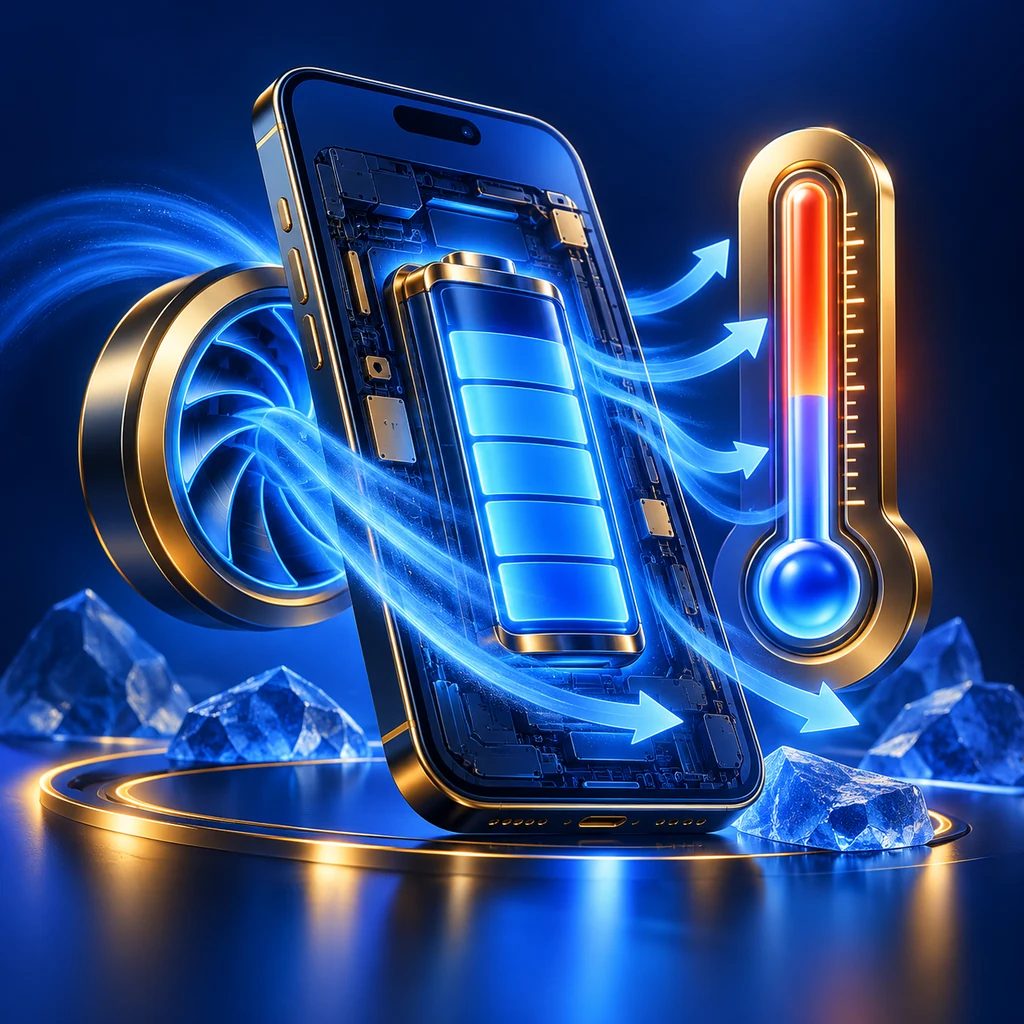
A warm phone or a fast battery drop during a Playtime game session needs a device-level investigation. Screen brightness, radio conditions, charging and other background work can all contribute. This PT play performance guide helps you record the pattern, use ordinary settings and respond to a temperature warning without inventing a diagnosis for your phone.
Overview
Battery consumption and temperature are related observations, but they are not the same measurement. A percentage drop depends on battery condition, elapsed time and other activity, while a thermal warning is a device protection signal. This guide does not claim that a particular PT Gaming build causes overheating. Follow the phone manufacturer’s guidance when the device becomes unusually hot or changes behavior to protect itself.
Apple temperature management guidance · PAGCOR electronic gaming resources
Key Takeaways
- Stop the demanding activity if the phone displays a temperature warning or becomes uncomfortable to use.
- Note the starting battery percentage, elapsed time, screen brightness, network and whether the phone was charging.
- Lower excessive brightness and use any in-game quality or frame-rate options actually offered.
- Charging adds another source of heat, and a poor connection can change how the phone behaves during a session.
- If unusual heat or rapid drain continues across apps, ask the device manufacturer about battery health and hardware checks.
Respond to a thermal warning before troubleshooting
Stop the demanding activity if the phone displays a temperature warning or becomes uncomfortable to use. Move it away from direct sunlight and let it return to normal conditions according to the manufacturer’s instructions. Avoid a fridge, freezer or sudden cooling method that can introduce condensation. Do not keep restarting the game to see whether the warning disappears. A phone that is swollen, damaged or behaving unusually needs device support rather than further gaming tests. Record the warning later when doing so does not prolong use.
Compare battery readings over a clear interval
Note the starting battery percentage, elapsed time, screen brightness, network and whether the phone was charging. Review the device’s battery screen for other active processes. A short percentage change is not a laboratory measurement of the game’s power demand, especially on an aging battery or immediately after a system update. Compare similar conditions if you want a useful pattern. Do not present one session as a universal claim about how many hours every PT Gaming user can expect from a charge.
Reduce demanding settings where they are available
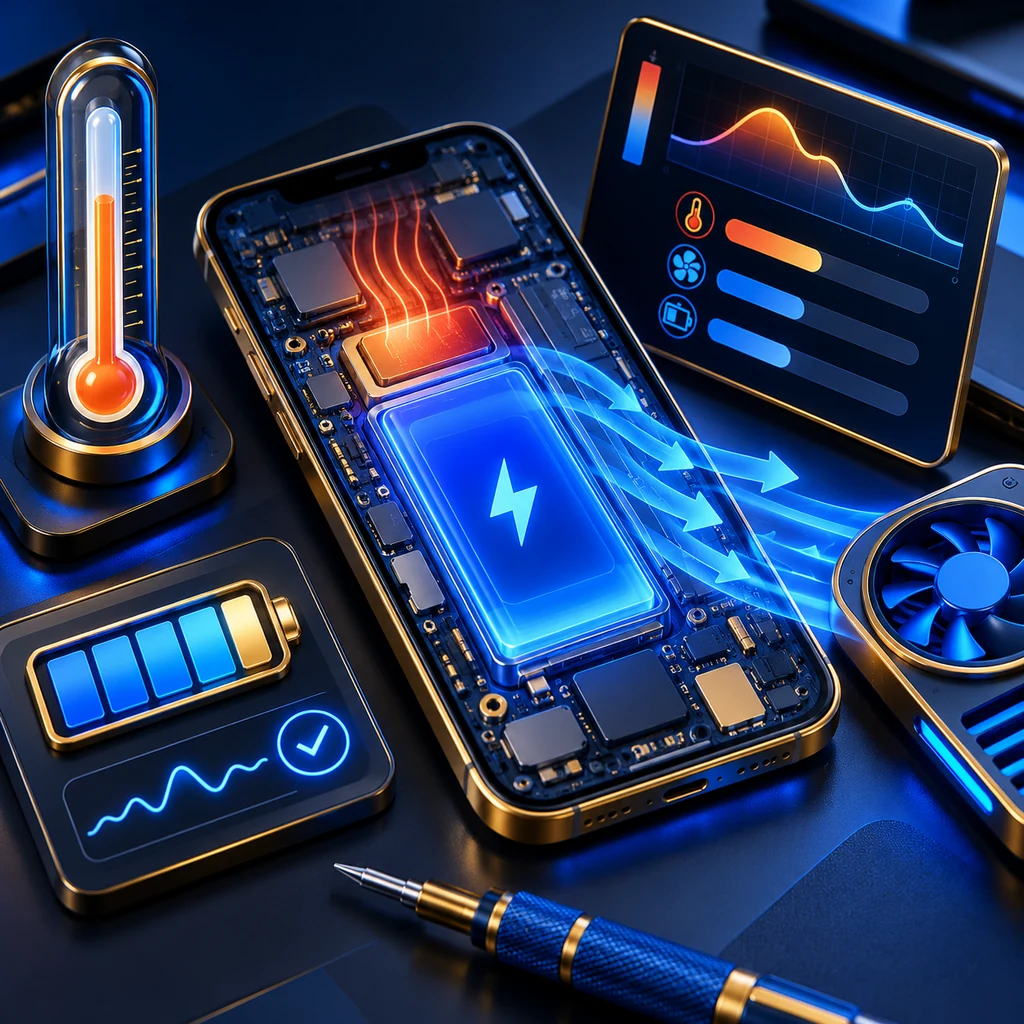
Lower excessive brightness and use any in-game quality or frame-rate options actually offered. Close unrelated demanding tasks rather than installing a cleaner that promises a one-tap repair. Battery-saving modes can change background behavior and performance, so note which mode is enabled. A device setting that improves temperature may also affect notifications or visual smoothness. Adjust one setting at a time and keep the result descriptive: the phone ran cooler in this test, not the app is permanently fixed.
Consider charging and network conditions
Charging adds another source of heat, and a poor connection can change how the phone behaves during a session. Compare a short non-sensitive task on a stable network after the device has cooled. Use charging equipment recommended for the device and inspect damaged cables through appropriate device support. Avoid treating a new charger as the answer to an uninvestigated software issue. If the heat appears only with a particular charging setup, record that difference and consult the manufacturer rather than continuing a long test.
Escalate persistent symptoms with context
If unusual heat or rapid drain continues across apps, ask the device manufacturer about battery health and hardware checks. If it appears limited to one app version or game screen, provide verified app support with versions, timing and a redacted description of the task. Do not share full device logs without checking what they contain. A repair request should distinguish warmth during demanding use from a thermal warning, shutdown or visible damage. That distinction helps the right support team evaluate the report without an unsupported diagnosis.
Frequently Asked Questions
1. Does warmth prove the Playtime app is defective?
No. Charging, brightness, background work and device condition can also contribute. Record the pattern before assigning a cause.
2. What should I do with a temperature warning?
Stop demanding use and follow the phone manufacturer’s cooling guidance. Do not keep reopening the game to test the warning.
3. Should I cool the phone in a freezer?
No. Sudden cooling can introduce condensation. Use the manufacturer’s recommended approach and normal surroundings.
4. Can charging affect heat during play?
It can add heat. Note whether the phone is charging and compare conditions only after the device has returned to normal.
5. Does a battery percentage drop measure exact app power?
No. It is an observation influenced by battery condition, elapsed time and other processes rather than a controlled power measurement.
6. What settings can I review first?
Review excessive brightness, available game quality settings and unrelated demanding activity, changing one variable at a time.
7. Will battery saver preserve every feature?
It may change performance or background activity. Check the device’s description and observe whether notifications or other functions change.
8. Should I install a cooling app?
An advertised cooling utility does not diagnose a hardware or software cause. Prefer the device’s built-in information and manufacturer guidance.
9. Can poor signal be relevant?
Network conditions are useful context for a power or heat report, but they do not by themselves prove the cause.
10. What if other apps also drain the battery quickly?
That supports a broader device investigation, including battery condition and system activity, rather than focusing only on one game.
11. What if the battery is swollen or the device is damaged?
Stop using the device and seek appropriate manufacturer or repair support instead of running more performance tests.
12. Can a recent OS update affect the comparison?
It can change background activity or settings. Record it along with the app version and the time the symptoms began.
13. Should I post full battery and device logs publicly?
Review them for private information first. Share only the details needed through a verified support route.
14. Does this guide provide a PT Gaming battery benchmark?
No. It provides an observation method and does not claim measured universal battery life for the app.
15. What makes a useful overheating report?
Describe the device, versions, task, duration, charging and network conditions, and whether there was a warning, shutdown or physical change.
Sources and verification
Editorial guide for eligible adults aged 21+. Promotional images and CTA buttons use a referral link.